Contents
Retirement planning and investing can often feel confusing and overwhelming, especially when trying to navigate complex jargon and a wide range of investment options. As an employer, ensuring your employees understand and can easily access their retirement benefits is crucial.
WealthRabbit, the first digital SIMPLE IRA management solution, is designed to simplify this process for both employers and employees. With WealthRabbit, employers gain the tools and support they need to confidently manage retirement planning, while providing their employees with the clarity they need to build a strong financial future.
In this blog, we’ll walk you through the employer onboarding process step by step, making it easier than ever to set up and manage your SIMPLE IRA plan with WealthRabbit.
Setting Up Your Employer Account
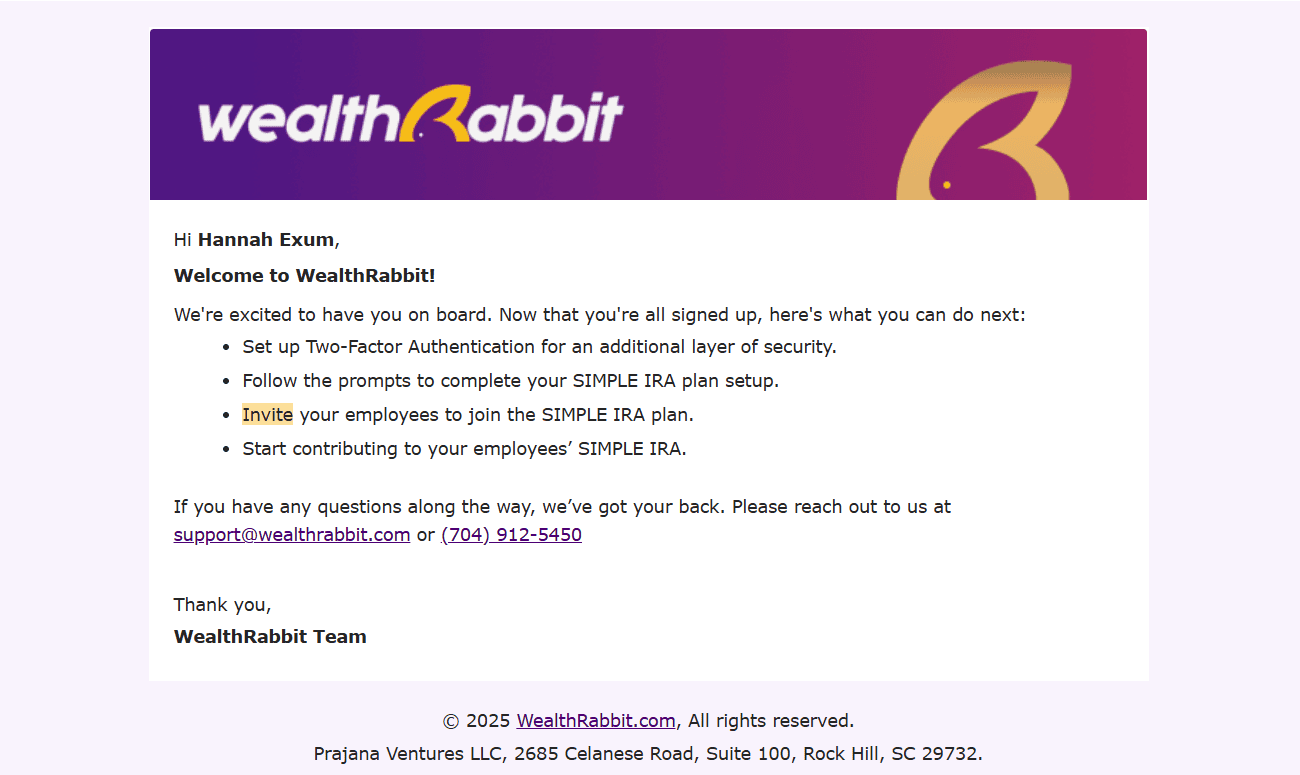
The first step in onboarding is setting up your employer account. WealthRabbit will send you an email invitation to create your account. From there, you’ll create a username and password to access your personal employer portal, where you can easily track your investments. Setting up your username and password is easy and secure.
Security You Can Count On
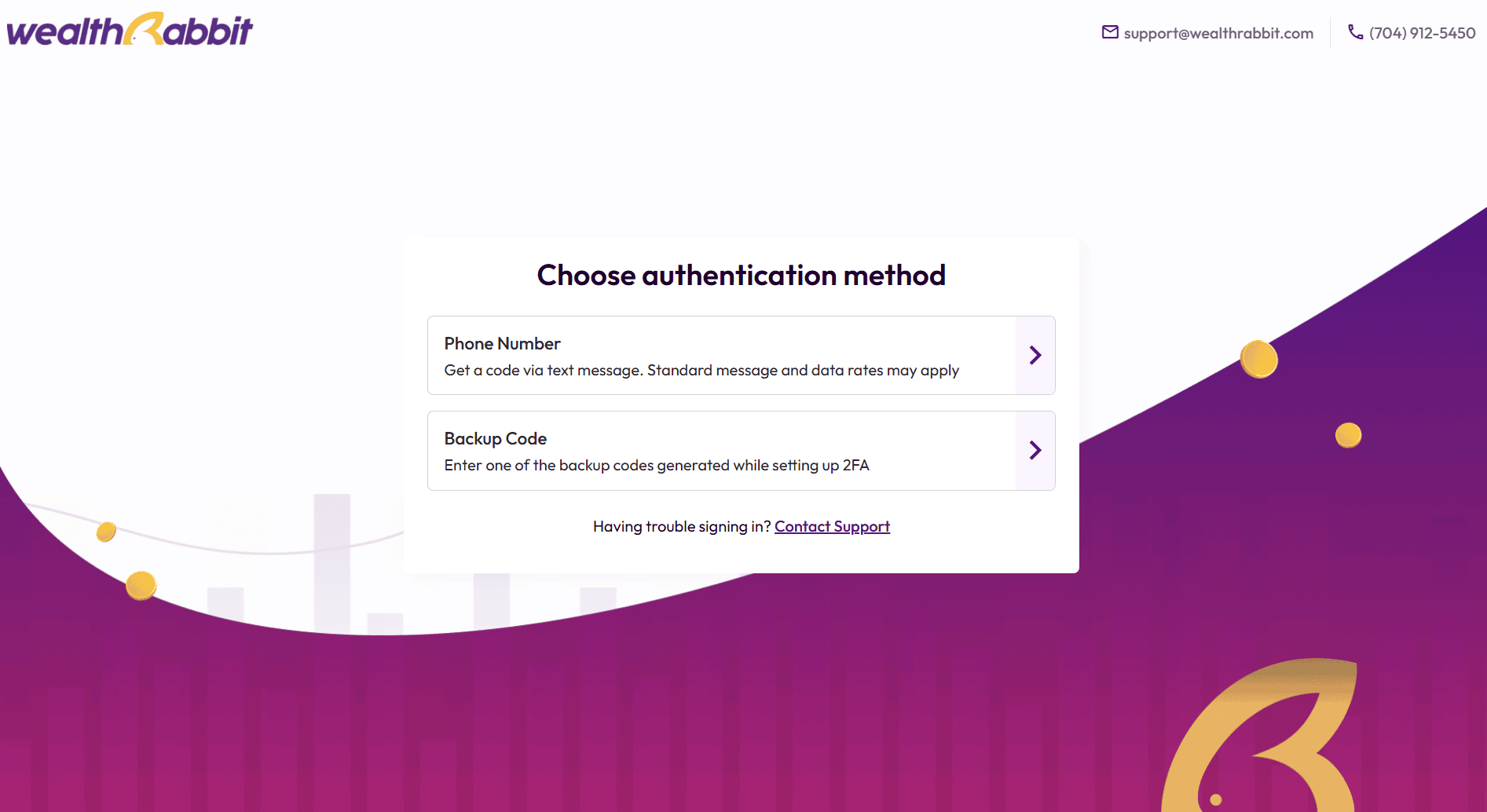
As a WealthRabbit partner, you’ll benefit from top-tier security measures to protect your personal information and investments. Here’s how WealthRabbit protects your account:
- Two-Factor Authentication: Choose from options like phone number verification, an authenticator app, or backup codes.
- Secure Sign-In: Each time you log in, you’ll be prompted to enter a verification code in addition to your password.
Setting Up Your SIMPLE IRA
Once you have created a secure account, you can get started building your employer profile and setting up your business’ SIMPLE IRA. The employer onboarding portal is divided into three main sections—Business Information, SIMPLE IRA Plan, and Agreements. Within each section, you will need to fill in the relevant information. Don’t worry—our user-friendly employer portal will guide you through each step! Let’s break down the process:
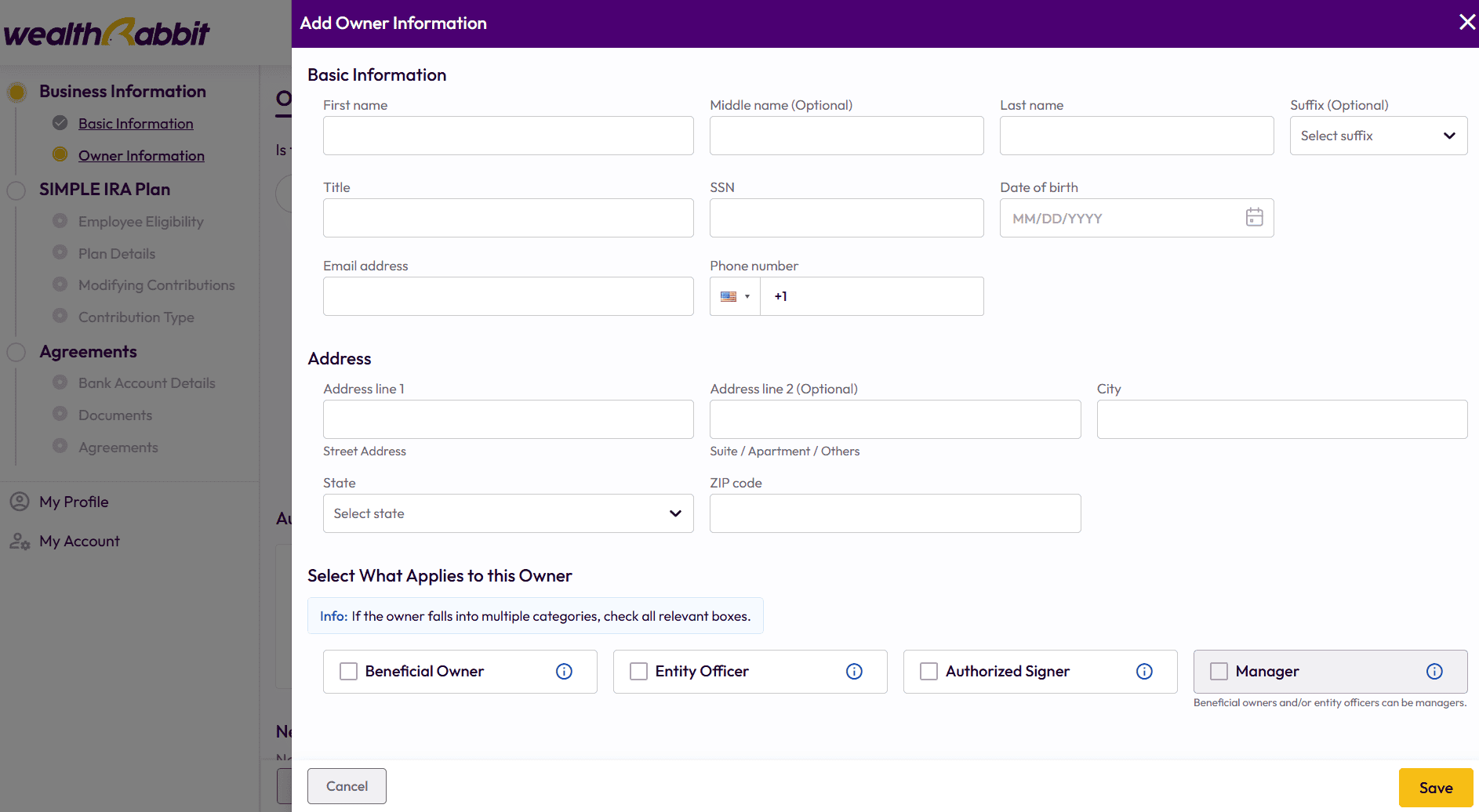
1. Add Basic Business Information
Begin by entering essential details about your business. This includes:
- Social Security Number (SSN)
- Business address
- Phone number
After providing the basic information, you’ll need to navigate to the Owner Information section and add an Entity Officer or Manager to complete this step.
Once you have completed your business information you can move on to the SIMPLE IRA Plan section.
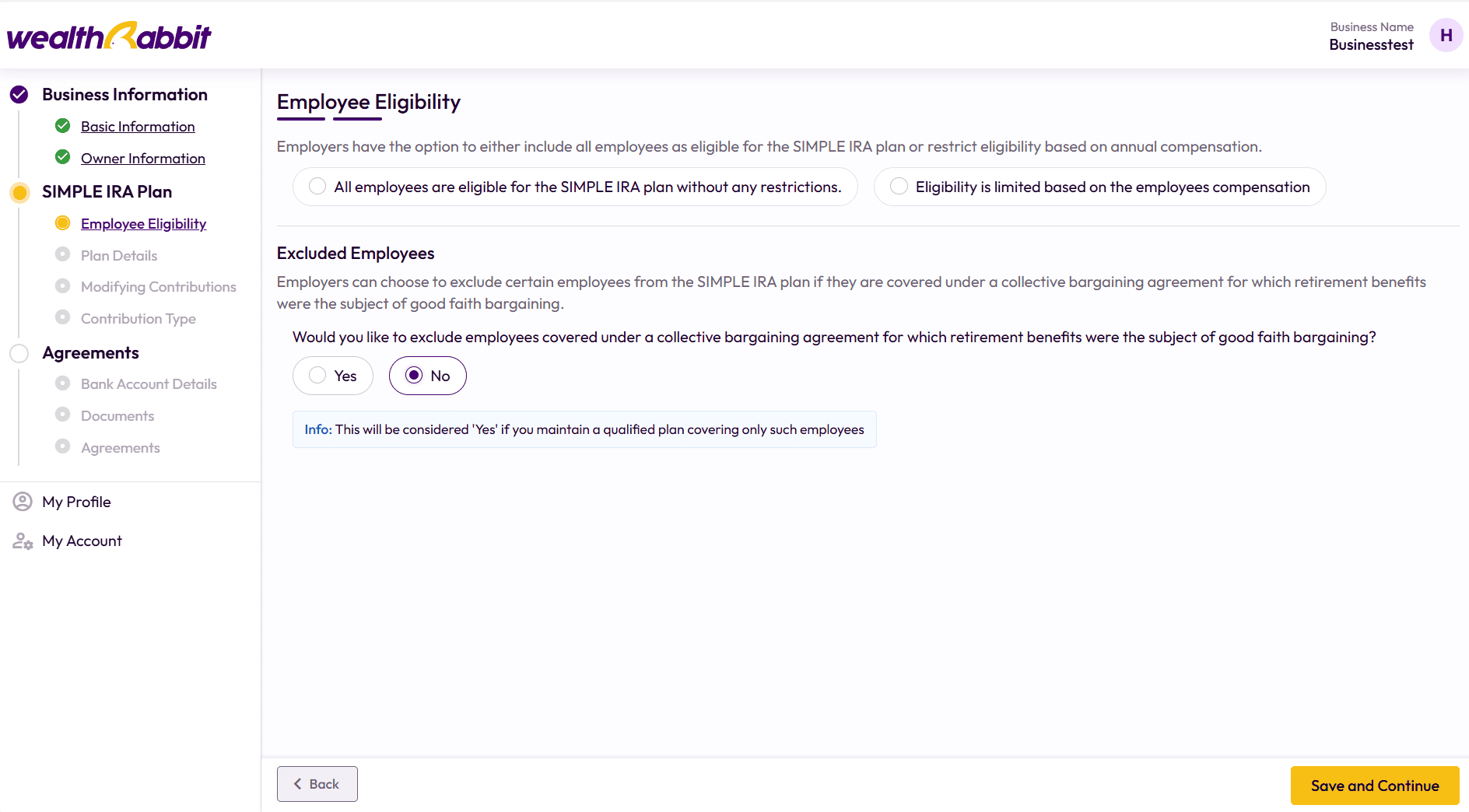
2. Set Up Your SIMPLE IRA Plan
Once your business details are finalized, it’s time to create your SIMPLE IRA plan. This includes defining employee eligibility and entering plan specifics.
Employee Eligibility
Employers have the flexibility to include all employees or apply eligibility criteria, such as annual compensation requirements. Additionally, you can choose to exclude certain employees based on union agreements.
Excluded Employees
Employers can exclude employees who are covered under a collective bargaining agreement where retirement benefits were subject to good faith bargaining.
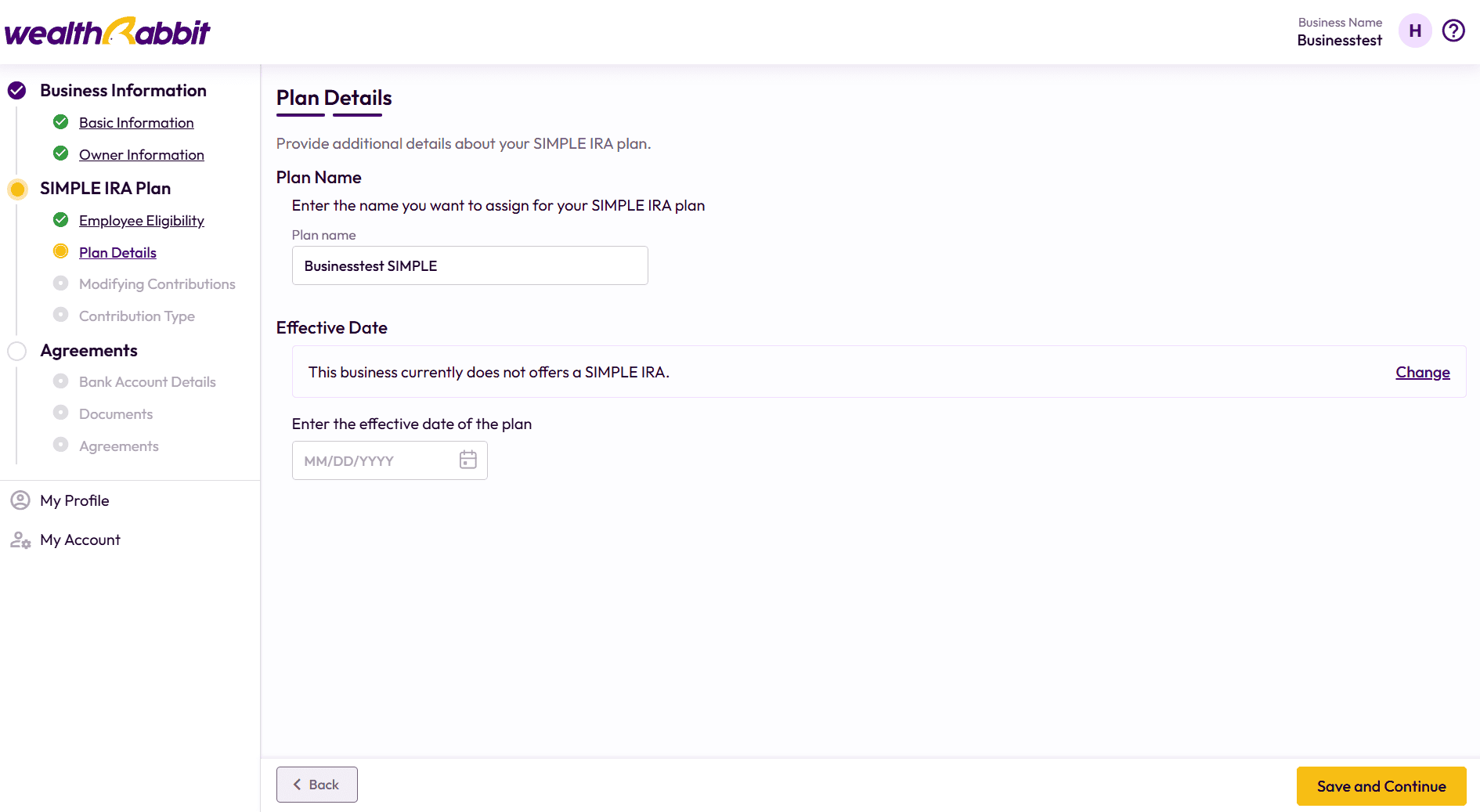
Enter Plan Details
Next, provide some key information about your SIMPLE IRA plan, including:
- The name you want to assign to the plan
- The plan’s effective date
This information helps define the structure of your plan and allows employees to see relevant details when accessing their accounts.
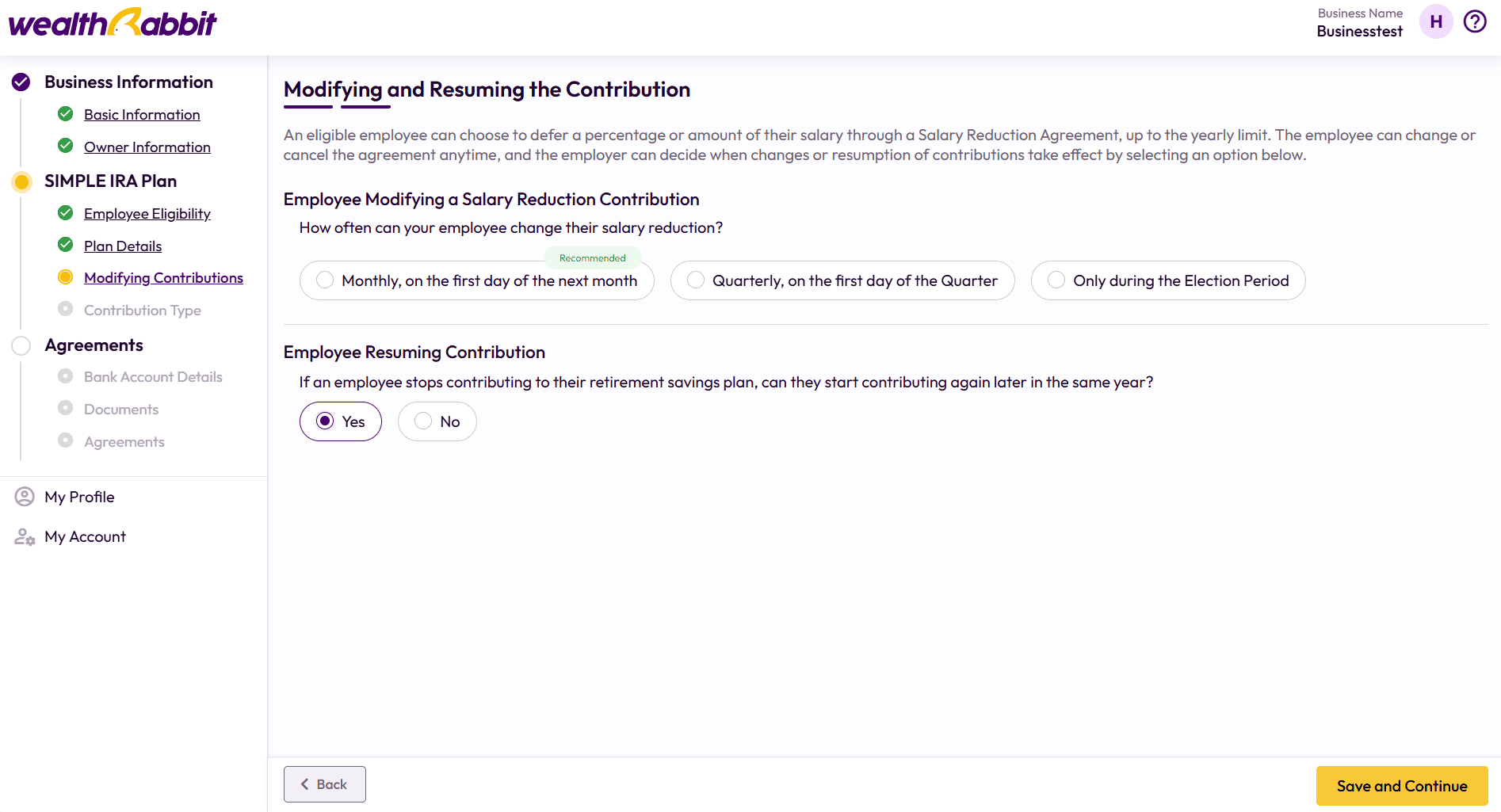
Customize Contributions
One of the standout features of WealthRabbit is its customizable contribution options. Employees can defer a portion of their salary through a Salary Reduction Agreement, up to the yearly limit. Employees can also modify or cancel their contributions anytime, while employers can control how often these changes can be made.
Contribution Change Frequency Options:
- Monthly
- Quarterly
- During the election period only
Not sure which option to choose? WealthRabbit provides recommendations based on best practices, so you don’t have to guess.
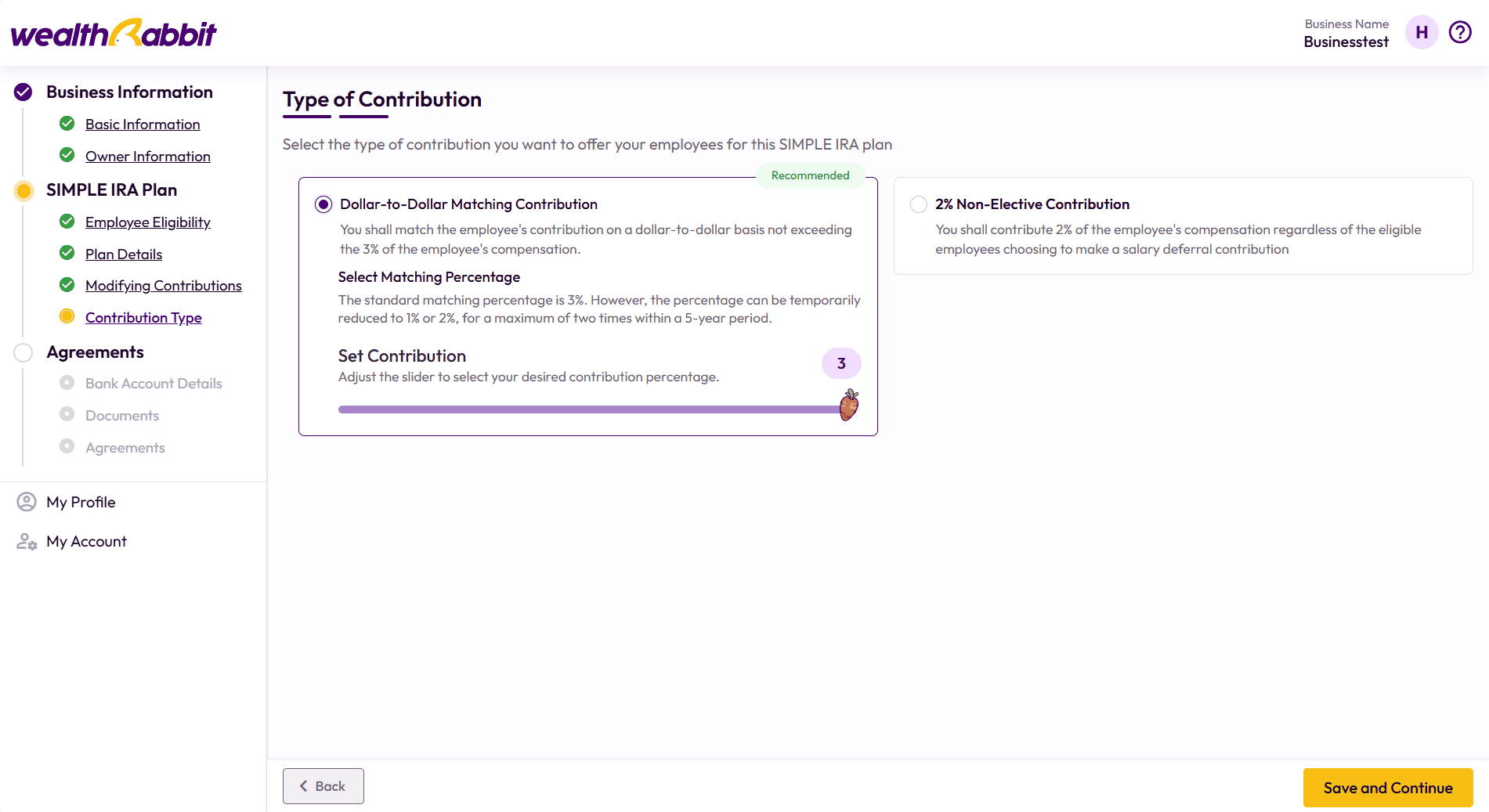
Choose Your Contribution Type
WealthRabbit offers two options for employer contributions:
1. Dollar-to-Dollar Matching Contribution (Recommended)
- Match employee contributions dollar-for-dollar, up to 3% of the employee's compensation.
2. 2% Non-Elective Contribution
- Contribute 2% of each eligible employee's compensation, even if they choose not to make salary deferral contributions.
Choose the option that best fits your business and financial strategy. Not sure? Leave it to our experts!
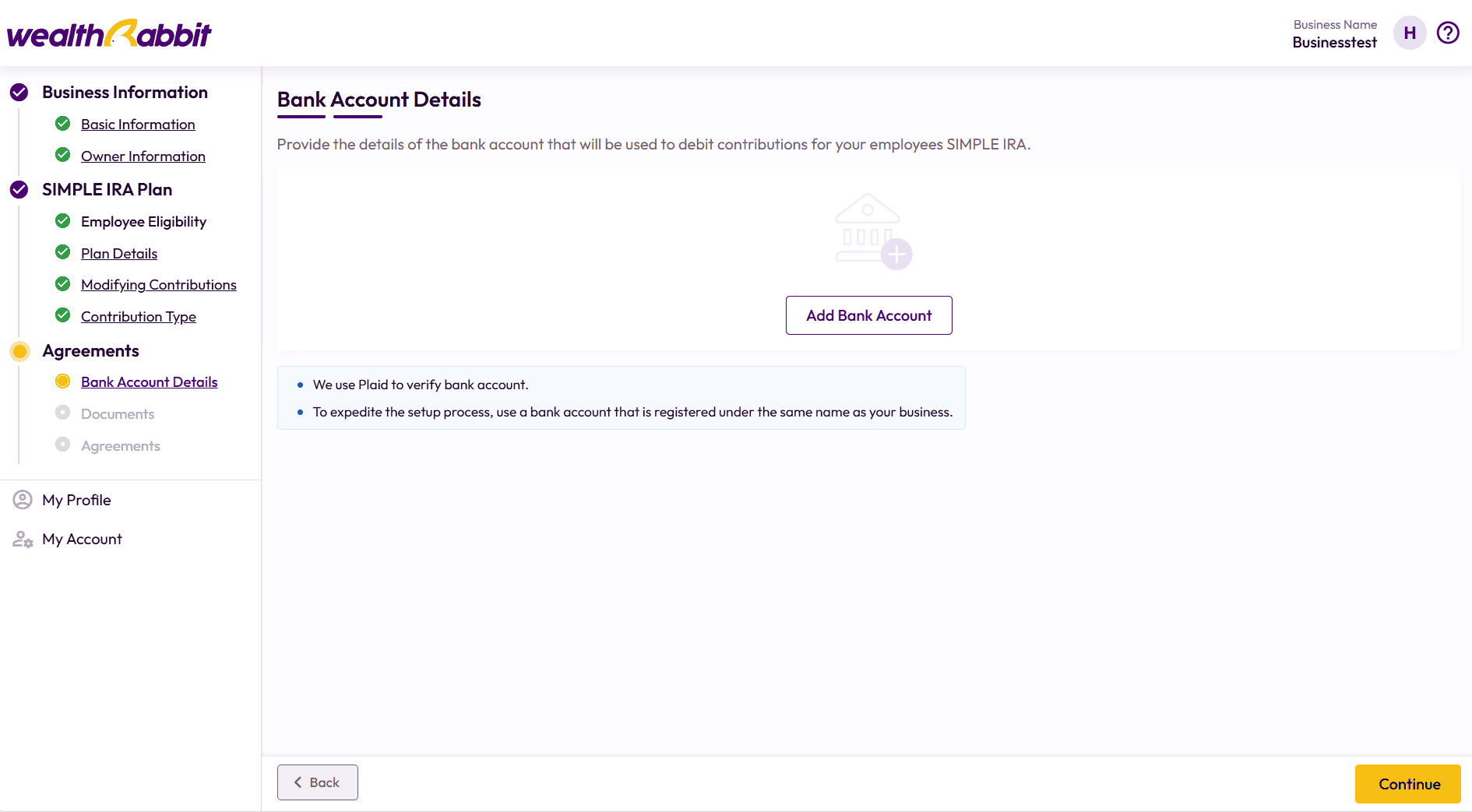
3. Agreements & Documentation
Finalize your plan by reviewing and signing the necessary agreements and adding a financial institution. WealthRabbit keeps your documents organized and easily accessible through your employer portal.
Manage Your Plan with Ease
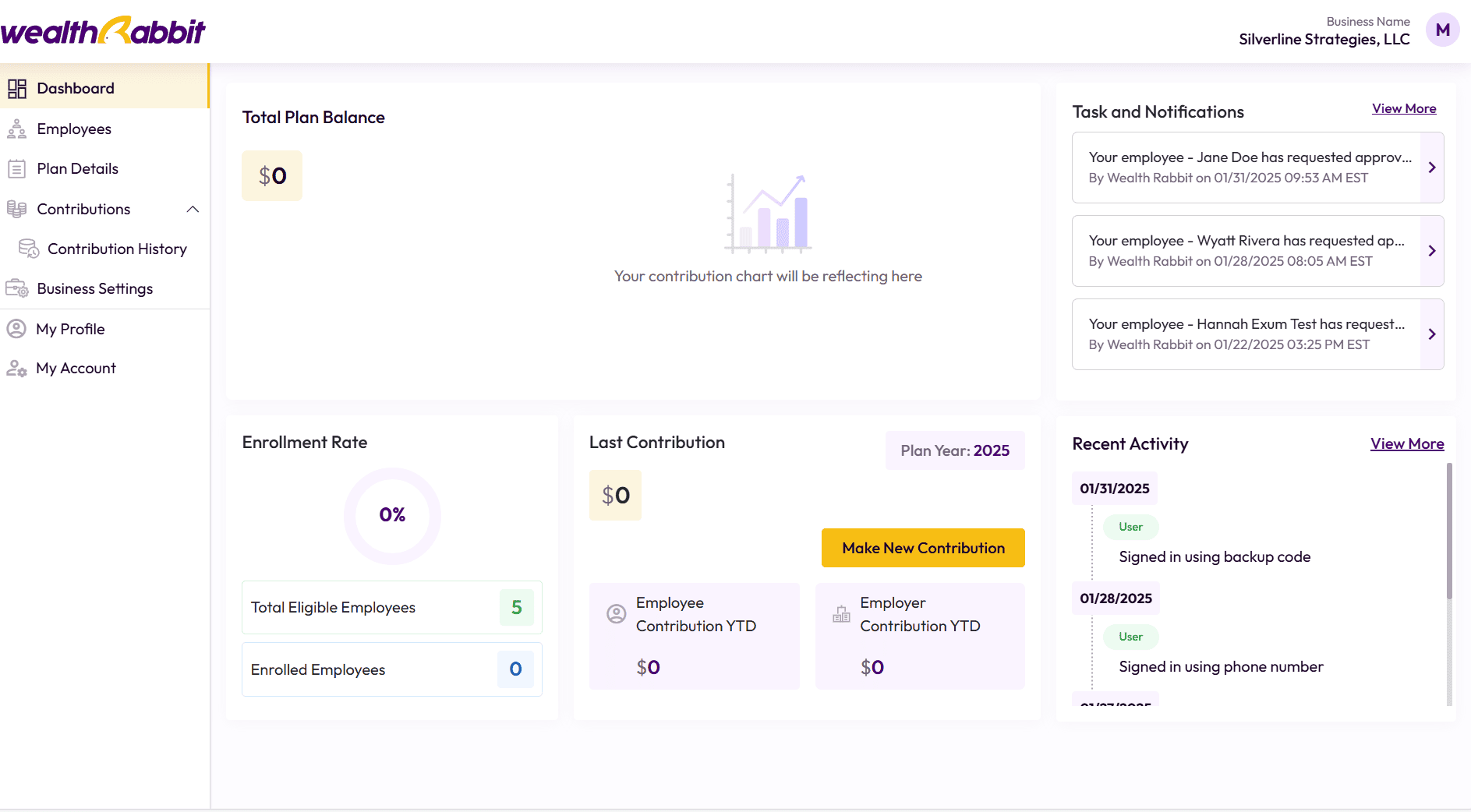
Congratulations! Your SIMPLE IRA plan is now set up. You can manage the plan through WealthRabbit’s employer portal, which features an easy-to-use dashboard designed to help you stay on top of your retirement plan.
Welcome to WealthRabbit!
Once your account is set up, you can take full advantage of our user-friendly dashboard to easily monitor your contributions
Dashboard Features:
- Account Summary – View an overview of contributions, account balance, and plan details.
- Employee Management – Add or remove employees, track enrollments, and manage permissions.
- Real-Time Contribution Updates – Monitor contributions and investment performance with up-to-date insights.
Go Mobile!
Want even more flexibility? Download the WealthRabbit mobile app to manage your SIMPLE IRA plan on the go! The app provides instant access to your account, real-time notifications, and investment insights—all in the palm of your hand.
Start Your Retirement Journey Today
Setting up a SIMPLE IRA has never been this simple. With WealthRabbit’s digital tools, automated processes, and expert support, you can focus on growing your business while providing a secure financial future for you and your employees.
For a more visual demonstration on the onboarding process, check out our Employer Setup Demo Video.
About the Author

Not sure which plan fits?
Answer three quick questions about team size and budget - we'll match you to a plan, no reading required.